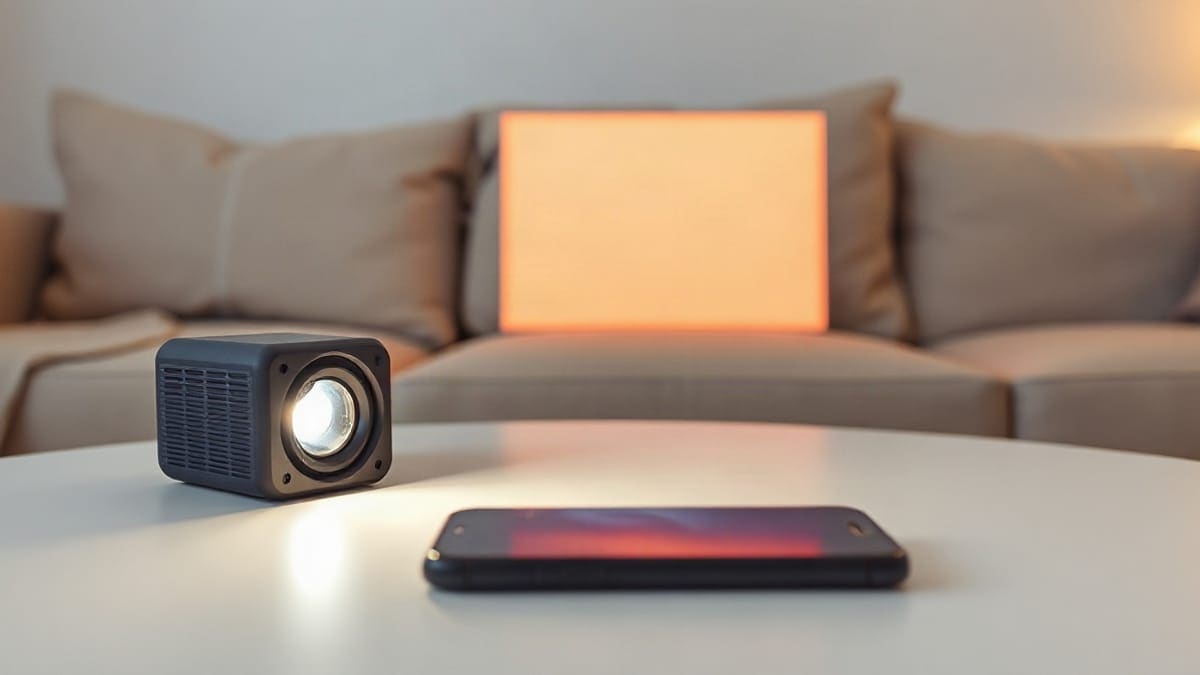
The surest way to connect a phone to a projector is a cable. A USB-C iPhone (not the 16e or 17e) needs a USB-C to HDMI adapter that supports HDMI 2.0, which Apple says gives 4K at 60 Hz, and an older iPhone needs Apple's Lightning Digital AV Adapter. Android phones with USB-C video, such as the Galaxy S line, use the same cable. Without a cable, use AirPlay on an iPhone or Cast on Android. Netflix blocks most mirroring, so a projector with its own apps, like the JMGO N1S 4K, is the easy fix.
Which method should you pick?
- Use a USB-C to HDMI cable if your phone is an iPhone 15, 16 or 17 (not the 16e or 17e), a Galaxy S model or a Pixel 8 or newer, and you want zero Wi-Fi setup. It adds almost no delay.
- Use the Lightning Digital AV Adapter if your iPhone has the old Lightning port. It is the only wired route for those phones.
- Use AirPlay or Google Cast if you only want photos, home videos or YouTube on a wall and the projector supports the standard, such as the Nebula Mars 3 Air for Android casts.
- Neither if your goal is Netflix, Disney+ or Max from the phone: install the app on the projector or on a stick plugged into it. A Fire Stick or Chromecast costs less than any workaround.
Our picks at a glance
- 1Use AirPlay or Google Cast ifyou only want photos, home videos or YouTube on a wall and the projector supports the standard, such as the for Android castsCheck price
- 2Install the app on the projectorA Google TV projector runs Netflix natively. The and the JMGO N1S 4K are examples, and JMGO lists a Google TV system on its…Check price
- 3Epsononly some models list Android TV or built-in mirroring, so open the product page. The Epson projectors hub lists connections model…Check price
Quick answer
- Fastest wired route: phone, USB-C to HDMI adapter, HDMI cable, projector. Setup takes about 2 minutes.
- iPhone 14 and older: Lightning Digital AV Adapter (Apple models A1438 or A1621 are the ones Netflix accepts).
- Wireless: iPhone uses Control Center > Screen Mirroring (AirPlay). Android uses Google Home > Cast screen, or Smart View on a Samsung.
- Bluetooth: carries sound only, never video.
- Streaming apps: protected video (HDCP) often shows a black screen over an adapter, and Netflix says AirPlay is not supported.
- Cable run: a passive HDMI cable stays reliable to roughly 15 feet (4.5 m).
Will a smartphone work with a projector at all?
Yes. Every smartphone can show its screen on a projector, but the route differs by phone and by projector. The projector needs one of three things: an HDMI input for a cable, a wireless receiver (AirPlay, Google Cast or Miracast), or an app store of its own.
| Your phone | Wired method | Wireless method | Works for Netflix? |
|---|---|---|---|
| iPhone 15, 16 or 17 (USB-C; not 16e, 17e) | USB-C to HDMI adapter or Apple USB-C Digital AV Multiport Adapter | AirPlay 2 | Cable: yes with a supported adapter. AirPlay: no |
| iPhone 16e or 17e (USB-C, no video output) | None works | AirPlay 2 | AirPlay: no |
| iPhone 14 or older (Lightning) | Lightning Digital AV Adapter | AirPlay | Cable: yes with A1438 or A1621. AirPlay: no |
| Samsung Galaxy S | USB-C to HDMI cable (DeX video out) | Smart View, Google Cast | Cast: only to supported devices |
| Pixel 8 or newer | USB-C to HDMI cable | Google Home Cast screen | Cast: only to supported devices |
| Pixel 7 or older | Not possible | Google Home Cast screen | Cast: only to supported devices |
| Other Android with USB-C | Only if the spec sheet lists DisplayPort output | Miracast or Cast | Varies |
The last row matters most. Many mid-range Android phones have a USB-C port that charges and moves files but cannot output video. Check the phone's spec sheet for "DisplayPort" or "video output" before you buy a cable. Phones and projectors that connect without any of this are listed on our best phone projector page, which owns the buying advice. This page covers the connection itself.
How do I connect an iPhone to a projector?
An iPhone connects by cable (USB-C or Lightning adapter) or wirelessly with AirPlay. Which cable depends on the port on the phone. Apple says to pick an adapter with the same connector as your device.
How do I connect an iPhone 15, 16 or 17 with USB-C?
Plug a USB-C to HDMI adapter or cable into the iPhone (Apple lists the iPhone 15, 16 and 17 models but not the 16e or 17e, which must use AirPlay instead), run an HDMI cable to the projector, and choose that HDMI input on the projector. Apple states that adapters and cables supporting HDMI 2.0 output video from an iPhone at 4K and 60 Hz, and that its own USB-C Digital AV Multiport Adapter does the same.
- Turn the projector on and wait for the lamp or laser to warm up, about 30 to 60 seconds for a lamp model.
- Connect the adapter to the iPhone, then the HDMI cable to the adapter and the projector.
- Press Source on the projector remote and select the HDMI port you used.
- The iPhone mirrors its screen on its own. Rotate the phone to landscape for a full-width picture.
- If the screen stays black, unplug both ends and reconnect, then try a second HDMI cable.
The multiport version has a USB-C power pass-through, so the phone can charge during a 2 hour movie. A plain USB-C to HDMI cable does not charge it. A USB-C to HDMI cable is the cheapest start, and the Apple USB-C Digital AV Multiport Adapter is the version Netflix's help page names for USB-C iPhones.
How do I connect an older iPhone with Lightning?
Use Apple's Lightning Digital AV Adapter, the one with an HDMI port. Netflix lists adapter models A1438 and A1621 as the supported ones, and says that if you do not see either number on your adapter, it can cause a black screen. VGA adapters carry no sound and no protected video, so skip them. The Apple Lightning Digital AV Adapter is the one to buy. Third-party Lightning adapters are the usual cause of "this content cannot be played" errors.
How do I use AirPlay to connect an iPhone to a projector?
Put the iPhone and the projector on the same Wi-Fi network, open Control Center, tap Screen Mirroring and pick the projector. Apple's steps say to swipe down from the top right corner on an iPhone X or later, and to enter the passcode if the projector shows one.
The projector must support AirPlay. Models that do are listed on the best AirPlay projector page, and the Samsung Freestyle 2nd Gen is one, per Samsung's support page. A projector with a Fire TV stick may not: sources say the Fire Stick itself does not offer AirPlay, so check before you count on it. Inside an app, tap the AirPlay icon instead and the app sends the video directly, which keeps the phone free.
AirPlay works well for photos, YouTube and home video. It adds a short delay, so it is not for games.
How do I connect an Android phone to a projector?
An Android phone connects by USB-C cable if its port outputs video, or wirelessly with Google Cast, Miracast or Samsung Smart View. The wireless route works on every Android phone, while the cable route works on only some.
Does my Android phone output video over USB-C?
Only if the phone supports DisplayPort Alt Mode (video over USB-C). Samsung Galaxy S phones do through DeX or a USB-C to HDMI cable, and Samsung's Canada page describes plugging in the cable and tapping the DeX notification to mirror the screen. Google's Pixel 8 and Pixel 8 Pro gained display output in Android 14 QPR3 Beta 2, according to Android Central, while the Pixel 7 and older Pixels have none. A third-party list also includes the Galaxy S24, S24+ and S24 Ultra, but confirm with your own model's spec sheet.
Connect it like an iPhone: USB-C to HDMI cable into the phone, HDMI into the projector, then choose that input. If nothing appears, try another cable, because some USB-C cables carry only charging and data.
How do I cast an Android screen to a projector with Google Cast?
Open the Google Home app, touch and hold the projector's tile, tap Cast, then Cast screen. Google says this needs Android 8.0 or later and a phone on the same Wi-Fi network as the projector. If the picture stutters, Google advises keeping the phone within about 15 feet (4 m) of the projector, and to turn on Battery Saver if the phone runs low on power.
The projector must have Chromecast built in. Google TV models do: the XGIMI MoGo 3 Pro and JMGO PicoFlix list Google Cast, and so does the Nebula Mars 3 Air, per ProjectorCentral. Stop casting by long-pressing the tile again and choosing Stop mirroring.
How do I use Smart View on a Samsung phone?
Open Quick settings, tap Smart View, choose the projector from the list of nearby displays and accept the prompt on the screen. Samsung says both devices should be on the same Wi-Fi network. Smart View targets Samsung TVs and Miracast receivers, so on a Google TV projector use Cast instead. Pairs with matching ecosystems work best: a Galaxy phone with the Freestyle projector, for example.
How do I connect a projector to a phone with an HDMI cable?
You need the phone's adapter, then a standard HDMI cable to the projector. The projector's HDMI port is an input, so the phone side does all the work.
| Phone port | What to buy | Carries sound? | Top resolution | Charges while connected? |
|---|---|---|---|---|
| USB-C (video-capable) | USB-C to HDMI cable | Yes | 4K at 60 Hz (HDMI 2.0) | No, unless the adapter has a power port |
| USB-C iPhone | Apple USB-C Digital AV Multiport Adapter | Yes | 4K at 60 Hz | Yes, via pass-through |
| Lightning | Apple Lightning Digital AV Adapter | Yes | HDMI output | Yes, via the Lightning port |
| USB-C data-only Android | Not possible | n/a | n/a | n/a |
Pair the adapter with a cable rated Premium High Speed (18 Gbps) for 4K at 60 Hz. Our best HDMI cable for projector page covers lengths. A plain cable up to 15 feet (4.5 m) works for most rooms. Setup order and input selection are the same as in our projector setup guide.
Apple adds that movies, TV shows and some streaming apps need HDCP, the copy protection that checks both ends of the cable. Most modern projector HDMI ports are HDCP compliant, but a cheap capture adapter or an old display can fail the handshake.
How do I connect a projector to a phone with USB?
Only through a USB-C port that supports video output. A phone's USB cable plugged into the projector's USB-A port will not show the screen, because that port is built for drives and updates, not for video input.
- USB-C to HDMI: the working route, covered above. The cable converts the signal and the projector sees an ordinary HDMI source.
- USB-C to USB-C straight into a projector: works only on the few projectors with a USB-C video input, such as the discontinued LG CineBeam Q, whose DisplayPort USB-C port ProjectorCentral reports a reviewer used with phones. See the best USB-C projector list for others.
- USB-A on the projector: use it for a thumb drive with videos, or for power. Nothing more.
Also check the projector's manual before you believe a spec like "USB video": it often means playback from a drive.
Can you connect a phone to a projector with Bluetooth?
No. Bluetooth does not have the bandwidth for video. A projector uses it for speakers, headphones and remotes, so the phone's picture always comes by cable or Wi-Fi.
Pair the phone to the projector over Bluetooth only for sound, and send the picture another way. Bluetooth audio can also trail the picture on a mirrored video. If it does, use the projector's speaker through the HDMI link instead, or look at our best Bluetooth projector page for models built for audio.
What wireless options does a smartphone have for a projector?
Use AirPlay for an iPhone, Google Cast or Smart View for Android, or Miracast for a projector that lists it. Both devices must be on the same Wi-Fi network for AirPlay and Cast, and a 5 GHz network gives a steadier picture than 2.4 GHz.
| Standard | Phones | Projector needs | Typical delay | Best for |
|---|---|---|---|---|
| AirPlay 2 | iPhone | AirPlay support | 100 to 300 ms | Photos, YouTube, slides |
| Google Cast | Android, iPhone in some apps | Chromecast built in | 200 to 500 ms | Video from cast apps |
| Miracast | Most Android phones | Miracast receiver | 100 to 300 ms | Mirroring without a router |
| Smart View | Samsung Galaxy | Samsung TV or Miracast device | 100 to 300 ms | Samsung phone with Samsung screen |
| Projector app (vendor) | iPhone and Android | Vendor mirroring app | Varies | Cheap Android-based projectors |
The delay figures are typical ranges, not maker specs. The best results come from projectors that list the standard: see the best wireless Wi-Fi projector guide.
How do I connect a projector to a phone without Wi-Fi?
Use a cable. A USB-C to HDMI adapter or Lightning Digital AV Adapter needs no network at all, which makes it the right answer at a campsite, in a classroom or at a cabin.
Miracast is the other no-router option, since it connects the phone to the projector directly rather than through a router. Not every phone includes it. Samsung and many Android phones do, while iPhones never do. If the projector has a Wi-Fi hotspot mode or its own mirroring app, the manual will say so. Our guide to projector Wi-Fi problems covers networks that refuse the projector.
What if the projector has no HDMI port?
Go wireless, or use a projector that has a USB-C video port. Projectors without any HDMI port are rare in homes; the real problem is usually a phone without a video-capable USB-C port.
For old projectors with only VGA, use a Lightning or USB-C to VGA adapter. VGA carries no sound, so add a 3.5 mm audio cable to the projector's audio-in or a speaker. The picture will top out around 1080p and look soft.
Why does Netflix show a black screen when I connect my phone?
Netflix and other paid services use HDCP copy protection, and some adapters, cables or casting modes fail it. Netflix says AirPlay is not supported on iPhone and iPad, and that phone casting works on a short list: Chromecast (3rd generation or older), Google Nest Hub displays, and select Vizio and Compal TVs. Casting and mirroring need a Standard or Premium plan.
Three fixes work:
- Install the app on the projector. A Google TV projector runs Netflix natively. The XGIMI Horizon 20 and the JMGO N1S 4K are examples, and JMGO lists a Google TV system on its support page.
- Use a supported adapter. For a wired iPhone, that means A1438 or A1621 for Lightning, or the USB-C Digital AV Multiport Adapter.
- Add a streaming stick. A stick in the projector's HDMI port logs in to Netflix itself, and the phone becomes the remote.
More on this problem is on the Netflix not working on projector page.
Why is the sound not coming through the projector?
HDMI carries sound, but the phone may not switch to it, or the projector's speaker may be muted. Check the projector's volume, then the cable. A VGA adapter carries no audio at all, so use the 3.5 mm output of the adapter instead.
With AirPlay or Cast, the sound comes from the projector's speaker unless you pair headphones to the phone, which re-routes it. If a Bluetooth speaker is paired to the projector, the sound goes there. See projector sound not working for the longer list.
What do I do when the projector ignores my phone?
The usual causes are the wrong input, a loose adapter, a phone that cannot output video, or two devices on different networks. Work through the cheapest fix first.
| Symptom | Likely cause | Fix |
|---|---|---|
| "No signal" on the projector | Wrong input or adapter not recognized | Press Source, pick the used HDMI port, reseat the adapter at both ends |
| Black screen, cable connected | USB-C port has no video output | Check the spec sheet; use wireless instead |
| Netflix is black, rest is fine | HDCP or unsupported adapter | Use the projector's app or a stick |
| Projector not in the device list | Different Wi-Fi network | Put both on the same 5 GHz network |
| Picture stutters over Cast | Weak signal, far distance | Move within 15 ft (4 m) of the projector |
| Picture sideways | Phone in portrait | Rotate to landscape, lock rotation |
| Image cropped | Wrong aspect ratio | Set projector to Auto or 16:9 |
| No sound | Audio left on the phone or a VGA adapter | Use HDMI audio or a 3.5 mm cable |
| Works, then drops | Phone sleeping or low battery | Disable auto-lock; plug in power |
If nothing works, try a second HDMI cable and a different HDMI port first. The no signal HDMI fix page goes deeper.
Can Epson, Vankyo, RCA or Wanbo projectors connect to a phone?
Most of them can, but the method depends on the model. All four brands sell units with HDMI inputs, so the cable route works if your phone outputs video. Wireless support is the part that varies.
- Epson: only some models list Android TV or built-in mirroring, so open the product page. The Epson projectors hub lists connections model by model, and the Epson Home Cinema 2350 lists Android TV on Epson's product page.
- Vankyo, RCA, Wanbo: budget models often rely on a vendor mirroring app or Miracast rather than AirPlay or Chromecast. We have not confirmed a specific model's wireless spec, so read the manual for "Miracast", "AirPlay" or "Google Cast". If none is listed, use HDMI.
- Cheap Android-based units (HY300, Magcubic and similar): these run their own Android and often accept a Miracast style mirror from Android phones. We could not verify their listed features, so confirm on the seller's page before buying.
Whatever the brand, the phone-side cable works the same way.
Do pocket and mini projectors take a phone signal?
Yes. A mini projector connects like any other: HDMI with an adapter, or wireless if it lists AirPlay, Cast or Miracast. The difference is brightness and the number of ports.
A mini projector often has one HDMI port and a USB port for power, so plug the adapter into HDMI and power the projector from a power bank. Brightness is low (230 to 450 lumens on the models we compare), so expect an image of 30 to 80 inches in a dark room. Compare them in the best mini projector guide, and see the best portable projector page for battery models.
Which projectors connect to a phone most easily?
Pick one with an HDMI port, built-in casting and its own streaming apps. Then you can use a cable when you want reliability and a cast when you want convenience.
| Projector | Phone-friendly features | Brightness | Best for |
|---|---|---|---|
| JMGO N1S 4K | Google TV, Wi-Fi 6, Bluetooth 5.2, HDMI 2.1 | 1,700 ISO lumens rated | Living room or bedroom wall |
| XGIMI Horizon 20 | Google TV, Google Cast, two HDMI ports | 3,200 ISO lumens rated | Brighter rooms |
| Nebula Mars 3 Air | Google TV, Android casting, battery | 400 ANSI lumens rated | Android phone, dorm, tent |
| XGIMI MoGo 3 Pro | Google Cast, native Netflix | 450 ISO lumens rated | Desk, nightstand |
| JMGO PicoFlix | Google Cast, Netflix, about 4 hours battery | 450 ANSI lumens rated | Movie with no outlet |
| Samsung Freestyle 2nd Gen | AirPlay 2 per Samsung | 230 ANSI lumens | iPhone owner near an outlet |
All specs are from the maker and ProjectorCentral pages checked in November 2026. We left out the LG CineBeam Q, a model with a USB-C DisplayPort that ProjectorCentral lists as discontinued.
What projector connects to a phone for a specific room? For a bedroom or ceiling mount, start with the best projector for bedroom. For a backyard, a Cast or AirPlay projector with 1,500 lumens or more suits a 100 inch picture at dusk, as in the best outdoor projector guide. For sound-first setups, our best projector with speakers list helps. For the full ranking, read the best projector guide, the best phone projector page and the best projector for iPhone page.
On brand ranges, see the JMGO projectors and XGIMI projectors hubs, and for the iPhone side, mirror a phone screen to a projector. Shopping in person is possible too, but a store employee rarely knows the AirPlay or Cast support of a given model, so check the spec sheet before you buy and bring your phone's model number.
FAQ
Do projectors accept a phone as a source?
Yes. A projector shows a phone's screen through an HDMI adapter, or wirelessly with AirPlay, Google Cast or Miracast. The projector must have the matching input or receiver.
Do all projectors connect to a phone?
No. Almost all have an HDMI input, so a cable works if the phone outputs video. Wireless needs AirPlay, Cast or Miracast support, and many cheap projectors list none of them.
Is there a projector that connects to a phone without an adapter?
Yes, the few with a USB-C video input (the discontinued LG CineBeam Q had one), and any projector with AirPlay or Cast built in. Most still need an adapter for a wired link.
Can you connect your phone to the projector with a USB cable?
Only through a video-capable USB-C port with a USB-C to HDMI cable. A plain USB cable into a projector's USB-A port will not mirror a screen.
Can you hook up a phone to a projector with an HDMI cable?
Yes. Add the right adapter on the phone side: USB-C to HDMI for an iPhone 15, 16 or 17 (not the 16e or 17e), or the Lightning Digital AV Adapter for older iPhones.
Can an iPhone connect to any projector?
Any projector with HDMI works with the right adapter. Without a cable, the projector must list AirPlay. Netflix needs its own app or a supported adapter.
Can a Samsung or Pixel phone connect by cable?
A Galaxy S phone can, via DeX video out. A Pixel 8 or newer can too, while a Pixel 7 or older cannot. Wireless Cast works on all of them.
Can I connect a phone to a projector while it charges?
Yes with a multiport adapter that has a power input, such as Apple's USB-C Digital AV Multiport Adapter. A plain USB-C to HDMI cable does not charge the phone.
Is it okay to use a long HDMI cable from the phone?
Up to about 15 feet (4.5 m) of a passive Premium High Speed cable is fine. Beyond that, use an active or fiber HDMI cable.
Can I use the phone as a remote while it is connected?
Yes with Cast, because the phone only starts the video and the projector plays it. With a cable or AirPlay mirroring, the phone is the source.
Sources
- Apple Support: Get help with Apple Digital AV adapters
- Apple Support: Charge and connect with the USB-C connector on your iPhone
- Apple Support: Use AirPlay to stream video or mirror your iPhone screen
- Google Help: Cast your Android screen from the Google Home app
- Netflix Help Center: Cast or mirror Netflix from your mobile device
- Samsung: Mirror your Galaxy phone's screen with Smart View
- Android Central: Pixel 8 display output over USB-C
- ProjectorCentral: LG CineBeam Q HU710PB review
- ProjectorCentral: Nebula Mars 3 Air review
- JMGO N1S 4K support page
- XGIMI HORIZON 20 product page
- Epson Home Cinema 2350 product page
Keep comparing
 How to Connect a Projector to a LaptopConnect a projector to a Windows or Mac laptop with HDMI, USB-C or wireless casting
 Black Friday Projector Deals 2026Black Friday is November 27, 2026
 Projector Throw Distance CalculatorFind how far to place a projector for any screen size
 Projector on a WallCan you project on a wall? Wall color, finish, paint, distance