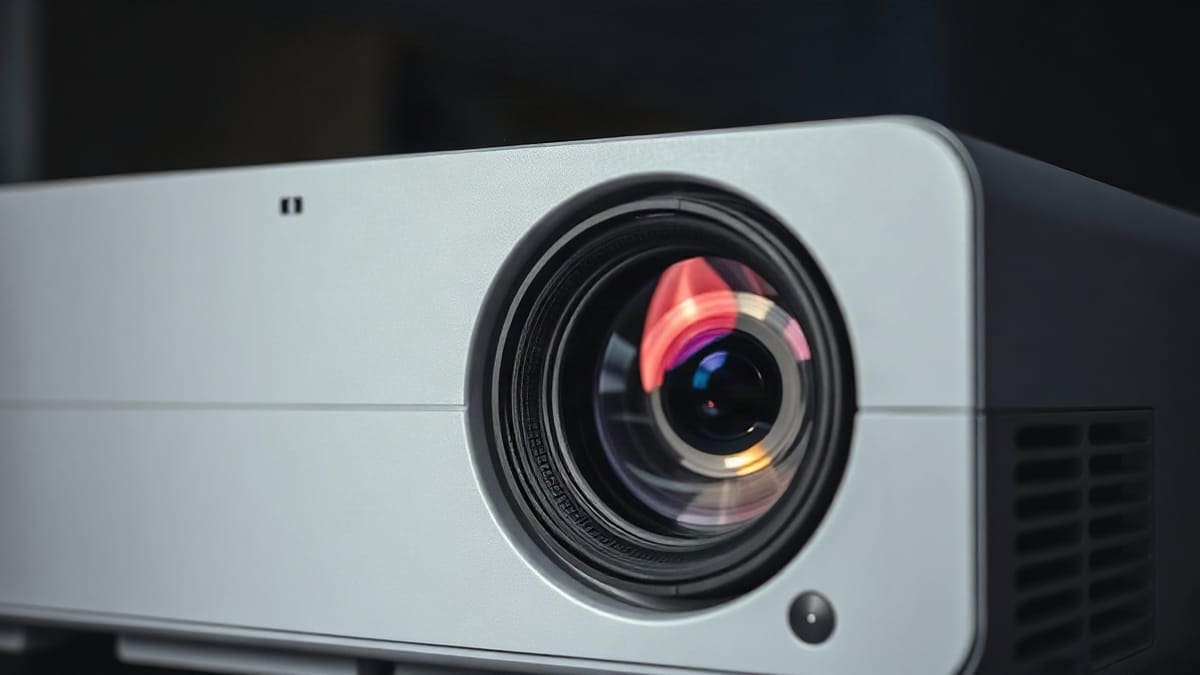
Set a projector on a stable surface about 8.7 feet (2.65 m) from a flat, light wall for a 100 inch picture with a typical 1.2:1 lens. Connect power and one HDMI source, then adjust focus, shape and size. Most people finish in 15 minutes. Auto-focus and auto-keystone models do much of the work, and lens shift lets you mount high or off to the side.
Which setup fits your room?
- Use a table or shelf with a gimbal projector if the room is 10 to 15 feet (3 to 4.5 m) deep and you want no mounting, as with the JMGO N1S 4K at 4.4 lb (2 kg).
- Use a ceiling or rear shelf mount with a lens shift model if the projector stays put, such as the XGIMI Horizon 20 Max with 120% vertical shift.
- Use a small portable projector on a tripod or stand if you move it between rooms, for example the XGIMI MoGo 4 at 2.9 lb (1.3 kg).
- Neither if your only wall is a dark color or your room is brighter than a dim evening. Then fix the surface or the light first, with a projector screen or a daylight projector.
Our picks at a glance
- 1Use a table or shelf with a gimbal projector ifthe room is 10 to 15 feet (3 to 4.5 m) deep and you want no mounting, as with the at 4.4 lb (2 kg)Check price
- 2Use a ceiling or rear shelf mount with a lens shift model ifthe projector stays put, such as the with 120% vertical shiftCheck price
- 3Use a small portable projector on a tripod or stand ifyou move it between rooms, for example the at 2.9 lb (1.3 kg)Check price
Quick answer
- Distance: a projector with a 1.2:1 lens needs 8.7 feet (2.65 m) for a 100 inch picture and 10.5 feet (3.2 m) for 120 inches.
- Order: place, level, focus, shape (keystone or lens shift), size (zoom), then picture mode, then sound.
- Cable: one HDMI cable under 15 feet (4.5 m) carries picture and sound.
- Room: dim the lights. A 100 inch picture needs about 475 lumens in a dark room by the 16 foot-lambert rule.
- Avoid: heavy digital keystone. It softens the picture and costs light.
What is the order of a projector setup?
Place it, power it on, focus, square the picture, set the size, choose a source and then adjust the picture mode. Each step has a section below. Here is the short route for a first evening.
- Measure the distance from the lens to the wall or screen, using the throw table below.
- Put the projector on a stable, level surface and plug it in.
- Point it at the middle of the picture area and power on. Lamp models take longer to warm up than laser and LED models.
- Focus on text, such as the menu, not on a video.
- Fix the shape with lens shift first, then keystone if needed.
- Set the size with optical zoom or by moving the projector.
- Select the input (HDMI 1, HDMI 2 or the built-in apps).
- Choose a picture mode, usually Cinema or Movie, and turn the lights down.
- Set the sound, either the built-in speakers or an external system.
Do the steps in that order. Focus changes with size, and size changes with distance, so a picture that you focus first and then move will be soft again. If you only remember one rule, it is this: place the projector where the picture lands square on the screen, and use software correction last.
Where should you put a projector?
Put it on the center line of the screen, at the distance the lens needs, and as level as the room allows. The distance comes from the throw ratio, which is on the spec sheet. Multiply the ratio by the picture width.
| Throw ratio | 80 in picture | 100 in picture | 120 in picture | Typical type |
|---|---|---|---|---|
| 0.25:1 | 1.4 ft | 1.8 ft | 2.2 ft | Ultra short throw |
| 0.5:1 | 2.9 ft | 3.6 ft | 4.4 ft | Short throw |
| 1.2:1 | 7.0 ft | 8.7 ft | 10.5 ft | Most gimbal and portable models |
| 1.5:1 | 8.7 ft | 10.9 ft | 13.1 ft | Long zoom end |
The figures come from our calculation: distance equals the throw ratio times the picture width, and a 16:9 picture is 0.8716 times its diagonal wide. The full tables, in feet and meters, are on the throw distance calculator page, and rules of thumb for seating are on how far a projector should be from the screen. We measure from the front of the lens, not the back of the body.
Which spot suits you depends on the room:
| Spot | Best for | What to watch |
|---|---|---|
| Coffee table or low table | Rooms where you sit at 8 to 10 feet | The image rises, so you need tilt or vertical lens shift; people walk through the beam |
| Shelf behind the sofa | Living rooms with a 9 to 13 foot throw | Fan noise at the back of heads; 28 dB models are quiet enough |
| Ceiling mount | A permanent room | Needs lens shift or exact measuring; see the ceiling mount guide |
| Tripod or stand | Moving between rooms, a bedroom or a patio | Wobble; use a stand rated for the weight; see projector stands and tripods |
| Floor, aimed up at an angle | A quick evening in a small room | Needs keystone; expect softer edges |
| Cabinet under the screen | Ultra short throw models | The surface must be flat and level to the screen |
Can you put a projector behind the couch?
Yes. A ceiling or shelf position behind the seats keeps the beam out of everyone's way and hides the fan. The projector must sit within its throw range from the screen, so a sofa 4 feet from the back wall and a 1.2:1 projector means a screen distance of 10 to 12 feet, which fits a picture of 115 to 138 inches. A shelf behind the sofa works best with lens shift, because the lens sits above the center of the picture.
Where should the projector go in a bedroom?
Put it on a nightstand or dresser at the foot of the bed if the room is 8 feet (2.4 m) or deeper, or on the ceiling above the bed if you want the beam clear. A bedroom of 10 feet (3 m) from the wall to the lens holds a picture of about 115 inches at 1.2:1. Pick a quiet model, since a fan sits close to your head. Our bedroom projector guide lists models.
Where do you use a projector at home, and what is it for?
Use it in any room you can darken: a living room, bedroom, basement, garage or a patio at night. People use one for movies, games, sports, classroom or church slides and party videos, at 80 to 150 inches. It is a poor choice where you cannot control the light.
How do you focus a projector?
Turn the focus ring or run the auto-focus until the menu text is sharp at the edges and the middle. Do it after the projector has warmed up for 5 to 10 minutes, because the image shifts a little as the lens and chip heat up. Put a menu or a page of text on the screen and stand near it.
Manual models have a focus ring or a slider on the lens. Auto-focus models, such as the JMGO N1S line, the XGIMI MoGo 4 and many Google TV portables, focus by themselves after you move them. If a picture stays soft in one corner, the projector is not square to the wall, and no focus setting will fix it. For the optics behind it, including lenses, lasers and the projectors used in cinemas, see how a projector works. Check the focus guide for details and why a projector looks blurry if it still will not sharpen.
How do you fix a crooked or trapezoid picture?
A trapezoid means the projector is tilted up, down or sideways to the screen. Move the projector until the picture is square. If you cannot, use lens shift, and use keystone correction as the last step. Keystone is a software setting that bends the image back into a rectangle.
Digital keystone reduces resolution. The processor reshapes the picture, so some pixels no longer line up with the panel. Projector Reviews explains the loss, and other sources say text starts to look jagged at about 15 to 20% correction. ProjectorCentral measured about 15% brightness loss at a 10 degree tilt on the Nebula Capsule 3 Laser. A 4K picture with heavy keystone can look no sharper than 1080p.
| Method | What it does | Cost to the picture | Where you find it |
|---|---|---|---|
| Move the projector | Squares the lens to the screen | None | Anywhere |
| Lens shift | Moves the picture without tilting | None | Epson, Valerion, XGIMI Horizon 20 and 30, JMGO N3 Ultimate |
| Gimbal tilt plus auto keystone | Tilts and corrects | Small at low angles | JMGO N1S line, XGIMI MoGo 4 |
| Manual digital keystone | Bends the image | Soft edges, some light loss | Most home projectors |
If your projector has no lens shift, keep the tilt under about 10 degrees and the keystone number near zero. The keystone projector guide lists models that do it well, and the lens shift page shows how to use it.
What are zoom and lens shift for?
Zoom changes the picture size without moving the projector. Lens shift moves the picture up, down or sideways without tilting the body. Both are optical, so neither loses sharpness.
The XGIMI Horizon 20 family lists a 1.25x manual zoom and lens shift of 45% horizontal and 120% vertical. The Epson Home Cinema 2350 lists a 1.62x zoom with 60% vertical shift, and the Valerion VisionMaster Max a 1.67x zoom. The JMGO N1S 4K has a fixed 1.2:1 lens, so you set the size by moving the projector.
A shift of 60% means the picture's center can sit up to 60% of the picture height above or below the lens axis. On a 100 inch picture (49 inches tall), that is 29.4 inches. At 120% shift on the Horizon 20 Max, the lens can sit 58.8 inches off center, which is what makes a high ceiling mount workable.
Digital zoom is different. It crops the picture and throws away pixels, so avoid it. Our throw distance calculator has the reverse table: for a room 12 feet deep and a 1.2 to 1.5:1 zoom, you can fill 110 to 138 inches.
Which picture settings should you use?
Choose Cinema or Movie mode for films and TV, set color temperature to Warm, and turn the lights down. Those are the factory modes made for accurate color. Bright, Vivid or Dynamic modes are for rooms with a lot of light, and they push the picture green or blue.
| Setting | Dark room start | Room with lamps on | Why |
|---|---|---|---|
| Picture mode | Cinema or Movie | Natural or Bright | Cinema is the most accurate; Bright trades color for light |
| Color temperature | Warm | Normal | Warm is the setting closest to film white, and Cool turns white bluish |
| Brightness mode | Eco or Normal | High | High mode uses more power and louder fans |
| Motion smoothing | Off or Low | Off | It gives films a TV look and adds lag in games |
| Game mode | On for consoles | On for consoles | It cuts input lag; see gaming projectors |
These are common starting points, not a calibration, and we publish no gamma or color temperature numbers because we have no source for them. If your projector has fewer options, pick the mode named Cinema, Movie or Filmmaker.
The size of the picture affects how much brightness you need. A 100 inch picture is about 29.7 square feet, and 16 foot-lamberts, the common dark-room target inside the 12 to 22 range SMPTE allows according to ProjectorCentral, needs about 475 lumens. A 120 inch picture needs about 684. Our lumens guide explains room light. Brightness is rated by the maker, so a rated figure above the number you need leaves room.
How do you get good sound from a projector?
Use a soundbar, an AV receiver or Bluetooth speakers, and send the sound from the source or through the projector's audio out. The built-in speakers are enough for a bedroom but thin for a movie. Most home projectors list 2 x 6 W to 2 x 12 W speakers, such as the 2 x 12 W Harman Kardon pair on the XGIMI Horizon 20 and 30 families.
| Option | How it connects | Delay | Best for |
|---|---|---|---|
| Built-in speakers | None | None | A small room or a quick evening |
| Soundbar over HDMI eARC | HDMI eARC port to the soundbar | Very low | A permanent setup, Dolby sound from apps |
| Soundbar over optical or 3.5 mm | Cable from the audio out | Low | Older projectors with no eARC |
| Bluetooth speaker | Wireless | Often noticeable | Music; check the lip sync on video |
| Source to soundbar | Plug the soundbar into the Blu-ray player or console, projector gets only picture | None | Home theater boxes |
eARC is the HDMI port that sends sound from the projector back to a soundbar. The XGIMI Horizon S Pro lists an HDMI 2.1 port with eARC, and one of the two HDMI 2.1 ports on the JMGO N3 Ultimate carries it. If your projector has no eARC, use the optical or 3.5 mm output, or connect the soundbar to the source.
Bluetooth speakers add delay. If lips and voices drift apart, turn on the "audio sync" setting if it exists, or switch to a wired path. Our projector sound not working page covers a silent picture, and the projector with speakers guide lists models with good built-in sound.
What do you plug into a projector?
Plug an HDMI cable into the source and the projector, then choose that input. That works for a streaming stick, a Blu-ray player, a console and a laptop. Many projectors also run apps by themselves.
HDMI 1.4 handles 1080p at 60 Hz. For 4K at 60 Hz you need HDMI 2.0 on both ends and a Premium High Speed cable rated at 18 Gbps, and Ultra High Speed (48 Gbps) is only needed for 4K at 120 Hz. Keep a plain cable under 15 feet (4.5 m). The HDMI Licensing Administrator lists the certified cable program at hdmi.org. Our HDMI cable for projector page has picks. If the cable is longer, use an active or fiber cable that runs 50 feet (15 m) or more.
For a laptop, press Win+P on Windows or open Displays on a Mac, and see how to connect a projector to a laptop for the full set. For a phone, how to connect a phone to a projector covers iPhone and Android, with and without a cable. If you use the projector as a second monitor, set the display to Extend instead of Duplicate.
The JMGO N1S 4K has one HDMI 2.1 port and one USB-A port. Many other models list two HDMI ports, so you can leave a streaming stick and a console plugged in together.
How do you set up a Google TV projector the first time?
Plug in power, pair the remote, pick a language and Wi-Fi network, sign in with a Google account, then choose your apps. Google TV models such as the JMGO N1S 4K, the XGIMI Horizon 20 and the 2024 version of the Nebula Capsule 3 Laser (the 2023 version runs Android TV) follow the same flow. We found no Google page we could read for the exact menus, so the steps below follow the JMGO N1S 4K reviews and the prompts on screen, and menu names vary by model.
- Insert the two AAA batteries in the remote and pair it, as the N1S 4K has no buttons on the body.
- Connect to your Wi-Fi, which is 2.4 and 5 GHz on the N1S 4K.
- Sign in with a Google account, which the N1S 4K reviewer needed.
- Pick your streaming apps and sign in to each.
- Let auto-focus and keystone run if the projector has them.
Netflix is certified on some models but not all, and the apps differ by brand. Check the model's page before you buy. Our Google TV projector guide compares the platform across brands, and the JMGO N1S 4K review walks through Wi-Fi, a phone and a reset step by step.
Can you use a projector without the remote?
Yes. Most projectors have buttons on the body or the top. Google TV and Android models also work with a remote app on your phone. Keep the remote's batteries fresh, and if you lose it, a phone remote app or a USB keyboard on the port can drive the menu. A universal remote only works if it matches the projector's infrared codes.
Can you use a projector without Wi-Fi?
Yes. A projector shows whatever its HDMI input sends. Connect a laptop, a Blu-ray player or a streaming stick, and the projector needs no network. Smart projectors need Wi-Fi only for their own apps and updates. A phone hotspot can serve as the network when you are outdoors.
What if the room is not dark?
A projector can work in daylight with enough light and a screen. In daylight, a picture of 100 inches needs far more than the 475 lumens of a dark room. Our lumens guide puts a lit room at about 50 foot-lamberts, which is about 1,484 lumens for 100 inches, and a window room needs more. Use a gray or ambient-light-rejecting screen. A white wall in sunlight will wash the picture out. The best projector for daylight guide ranks models, and the bright rooms page works through curtains and screens. For outdoor evenings, see how to set up an outdoor projector.
Can you use a projector as a TV?
Yes. A Google TV projector runs Netflix, YouTube and other apps, and an HDMI input takes a cable box or a streaming stick. Add a soundbar and a screen, and you have a TV with a bigger picture. The tradeoff is light: a projector needs a dim room, and a TV does not. Our projector vs TV page makes the comparison. If you have no screen, a flat, matte, light wall is the usual first surface, and projector on wall answers wall color, paint and preparation. For a big picture, projector screen vs white wall compares the two.
Can you use a projector for tracing, sewing patterns or Halloween?
Yes. Many artists, quilters and bakers use a projector as a lightbox.
- Tracing and banners: point the projector square at a flat surface, so the picture has no trapezoid. Draw a 12 inch test square to check the scale, then trace.
- Sewing patterns: project a PDF at 100% scale. Measure a printed 1 inch square on the screen, and adjust the distance until it measures 1 inch. Pattern pieces then match the printed sizes.
- Painting a wall mural: the same method works. A tripod holds the projector steady, so the outline stays put while you paint.
- Halloween windows: project from behind a thin white sheet or a window film, and use a short loop video from a USB stick.
- Cookie decorating: project onto parchment and trace the outline with icing or a food-safe pen.
A small, bright, 1080p projector is enough for these. A projector that auto-corrects the keystone can distort the scale, so turn the keystone to zero and square the body to the surface.
How do you use a specific brand or model?
Every brand follows the same route: place, power, focus, shape, size, source. What differs is the remote, the menu and the apps. Epson, BenQ and Optoma projectors have a Menu button on the body or the remote, and Google TV models such as JMGO and XGIMI start from the home screen of the system. For a Vankyo, Yaber, Wanbo or other budget model, read the first pages of its manual for the ports, focus wheel and keystone buttons. Budget units usually have no lens shift, and iPhone mirroring usually needs a cable or adapter, as how to connect a phone to a projector explains. The maker's support page has the PDF if the manual is lost.
How do you care for a projector?
Keep the vents and filter clean, let the fan run after you power off, and keep the lens free of fingerprints. A dusty filter makes the projector run hot and loud.
Epson's support page says to clean the filter or vents when they get dusty. Turn the projector off and unplug it, then use a small computer-safe vacuum or a very soft brush on the air intake vent. Do not rinse the filter with water, and do not use detergent, solvent or canned air, which can leave residue or push debris into the optics. Replace the filter if it is torn or the dust will not come off. The cleaning steps for each model are in its manual.
- Dust the vents: when dusty, often monthly in a dusty room, with the projector unplugged, using a soft brush or small vacuum.
- Clean the lens: when you see smudges, with a lens cloth or a blower and no sprays on the glass.
- Replace the filter: when it is torn or dust will not come off, as the maker's manual describes.
- Replace a lamp: at the rated hours, 4,500 hours in Normal mode on the Epson 2350. Laser and LED models have no lamp to replace.
- Cool down after use: every time. Do not pull the plug while the fan is running.
Do not move or unplug a lamp projector while the fan is still cooling the lamp. A laser or LED projector cools faster, but the same habit applies. Keep a projector away from a stove, a smoke source or a window with direct sun.
What if the projector shows no picture or another problem?
Check the cable, the input and the power first. Most "no signal" cases are a loose cable or the wrong input. Our no signal HDMI fix page walks through the steps, and the troubleshooting guide covers dim pictures, noise and shutdowns.
- Blank screen, "No signal": plug the HDMI cable in firmly and choose the right input.
- Picture but no sound: check volume, mute and the audio output setting.
- Soft picture: focus on text after warm-up and reduce keystone.
- Trapezoid picture: move the projector square to the screen or use lens shift.
- Dim picture: dim the room and switch from Eco to Normal mode.
- Loud fan: clean the vents or use Eco mode.
Which projectors are the easiest to set up?
The easiest to set up have auto-focus, auto-keystone and a stand that swivels. The JMGO N1S line is the clearest example, and a portable such as the XGIMI MoGo 4 takes minutes.
The JMGO N1S 4K is a 4.4 lb gimbal projector with auto-focus and keystone, Google TV and a 1.2:1 lens. ProjectorCentral lists a 60 to 200 inch picture at 5.2 to 17.4 feet. JMGO rates it at 1,700 ISO lumens, though ProjectorCentral lists 1,100. Best for a dim bedroom or living room and a first projector. Not for a sunny room or a user who wants lens shift or zoom. Check price.
The JMGO N1S Ultimate adds light, with 3,500 ANSI lumens rated and about 2,600 to 2,800 measured by ProjectorCentral and Projector Reviews. It is a 9.9 lb (ProjectorCentral) gimbal projector with two HDMI inputs, a mini-jack audio out and Google TV. Best for a living room with lamps on, and 130 to 150 inch pictures. Not for someone who wants lens shift or zoom. Check price. See JMGO projectors for the family.
The XGIMI Horizon 20 Max is the one for permanent placement. It lists a 1.25x manual zoom, 45% horizontal and 120% vertical lens shift, two HDMI ports, Google TV and a 28 dB fan, with 5,700 ISO lumens rated. Best for a ceiling or shelf mount. Not for a small bedroom or a carry-around projector, since it weighs 11.9 lb. Check price. Our XGIMI projectors page covers the range.
The XGIMI MoGo 4 is the small one. It weighs 2.9 lb, lists auto-focus, auto keystone, obstacle avoidance, a 360 degree tilt stand and USB-C power at 65 W, and runs Google TV at 450 ISO lumens. Best for a bedroom, a trip, a patio at night. Not for a bright room or a big picture. Check price. See portable projectors for the group.
The Epson Home Cinema 2350 is the one with the most placement freedom for the price class. It lists a 1.62x zoom, 60% vertical lens shift and 2,800 ISO lumens (about 2,000 ANSI measured by one outside lab), from a 9 lb lamp body. Best for a long room with a ceiling mount. Not for a laser or a no-maintenance set-up, since a lamp wears. Check price.
For every size and room, the best projector guide has the full list.
FAQ
How do I use a projector for the first time?
Place it 8 to 9 feet from a light wall for a 100 inch picture, plug in power and an HDMI source, power on, focus on the menu, square the picture, and dim the lights. First use takes about 15 minutes.
How do I use a projector with my phone?
Use a USB-C or Lightning HDMI adapter for the most reliable picture, or cast with AirPlay or Google Cast to a smart projector. Full steps, with iPhone and Android, are in how to connect a phone to a projector.
How do I use a projector with a laptop?
Connect an HDMI cable, choose the input, and press Win+P on Windows or open Displays on a Mac. The details, including USB-C, are in how to connect a projector to a laptop.
How do I use a projector without a remote?
Use the buttons on the projector, a phone remote app on Google TV and Android models, or a USB keyboard on a projector with a USB-A port. A universal remote needs the right codes.
Can I use a projector as a TV?
Yes. A Google TV projector runs streaming apps, and an HDMI input takes a cable box. You need a dim room and a sound system. See projector vs TV.
Where should I put a projector in a living room?
On a shelf behind the sofa or on the ceiling, centered on the screen, at the throw distance, with the lens level to the picture. Lens shift gives the most freedom. See ceiling mounted projectors.
Does a projector use a lot of electricity?
Less than most large TVs on a per-inch basis, and it depends on the light source. See projector power consumption for watts by type. The Horizon 20 Max lists 280 W at full power.
Can I use a projector without Wi-Fi?
Yes. The projector shows whatever its HDMI input sends, so a laptop, a Blu-ray player or a streaming stick needs no network on the projector. Smart projectors need Wi-Fi only for their own apps and updates.
What do I use as a projector screen?
A matte white wall, a painted wall or a proper screen. A flat white sheet works for a night but wrinkles. A screen costs more but gives a better, flatter picture. See projector screens.
How do I use a projector outside?
Put it on a stable stand at the throw distance, use a screen or a large white sheet, wait for dusk, and check the power source. See how to set up an outdoor projector.
Sources
- Epson Support: Home Cinema 2350, air filter and lamp FAQ
- Projector Reviews: digital keystone correction
- HDMI Licensing Administrator: Premium High Speed cable program
- ProjectorCentral: throw ratio, zoom, lens shift and keystone brightness measurements for the models above, as cited on our other pages
- JMGO N1S 4K support page
- XGIMI HORIZON 20 product page
- Epson Home Cinema 2350 product page
- Our calculation: width = diagonal x 0.8716; distance = throw ratio x width; lumens = screen area in square feet x 16
Keep comparing
 Black Friday Projector Deals 2026Black Friday is November 27, 2026
 ProjectorWe compare 10 home projectors for 2026, from budget to 4K laser, with real brightness, throw distance
 Portable Projector 2026Nine real models compared on weight, rated and measured lumens, battery life and ports, with picks for travel
 Home Theater ProjectorEight home theater projectors compared for 2026 by contrast, black level, HDR, lens, noise and screen size