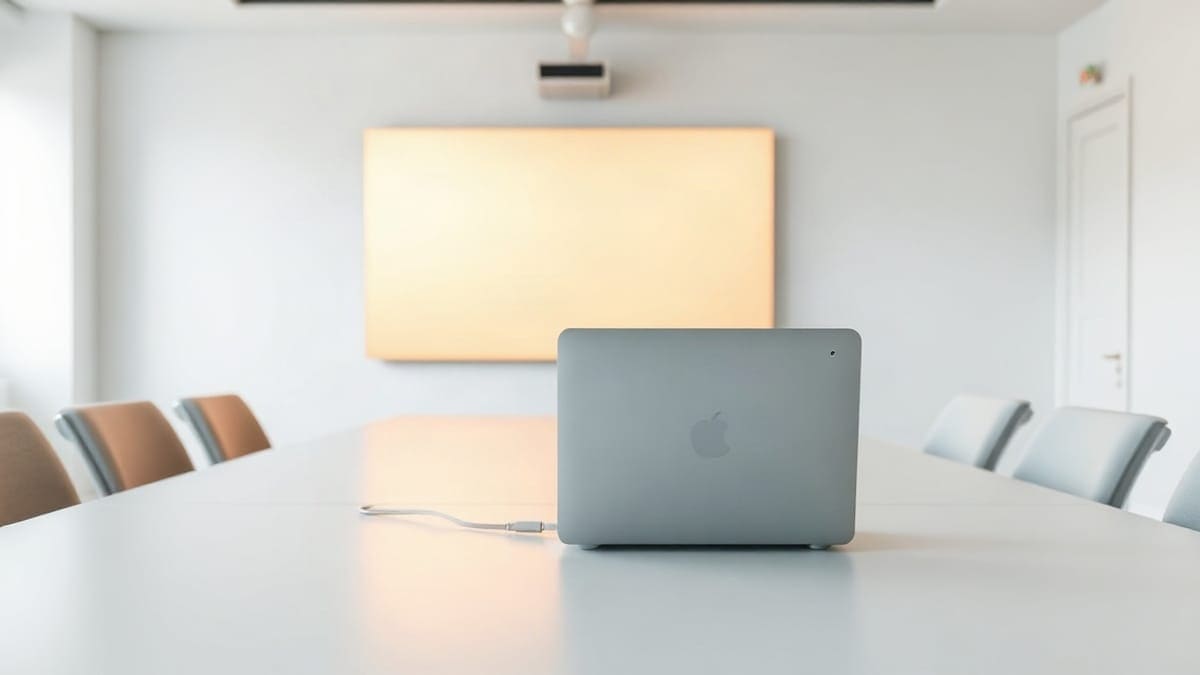
The fastest way to connect a projector to a laptop is one HDMI cable from the laptop's HDMI port to the projector's HDMI input, then pressing Win+P on Windows or opening System Settings > Displays on a Mac. No HDMI port on the laptop? A USB-C to HDMI cable on a port that supports DisplayPort Alt Mode does the same job at up to 4K and 60 Hz. A Google TV projector such as the JMGO N1S 4K can also take a wireless cast from Chrome.
Which connection fits you?
- Use HDMI if you want the most reliable picture, a cable under 15 feet (4.5 m) is fine, and the laptop has an HDMI port. It adds under 1 ms of delay.
- Use USB-C to HDMI if your slim laptop has no HDMI port but its USB-C port shows a DisplayPort or Thunderbolt symbol.
- Use a wireless cast if you only show slides or movies and your projector runs Google TV, such as the XGIMI Horizon 20. Expect 100 to 500 ms of delay.
- Neither if your laptop has only a data-only USB-C port and the projector has no wireless: buy a dock with HDMI output, or a projector with built-in casting and a wired fallback.
Our picks at a glance
- 1Use a wireless cast ifyou only show slides or movies and your projector runs Google TV, such as the . Expect 100 to 500 ms of delayCheck price
- 2JMGO N1S 4KGoogle TV, 4K, 1,700 ISO lumens rated by JMGO (ProjectorCentral lists 1,100), one HDMI 2.1 port (with eARC), one USB-A 2.0 port,…Check price
- 3Nebula Capsule 3 Laser1080p, 300 ANSI lumens rated (ProjectorCentral measured 302 on the 2023 version), a 40 to 120 inch image, HDMI input and a 52 Wh…Check price
Quick answer
- Best method: HDMI. It carries picture and sound in one cable, needs no drivers, and works on nearly every projector made in the last 15 years.
- No HDMI port: use USB-C with DisplayPort Alt Mode, or a USB-C to HDMI adapter.
- No cable at all: Miracast (Windows), AirPlay (Mac), or Chromecast built into a Google TV projector. Expect a short delay, so keep gaming and fast video on a cable.
- Shortcuts: Win+P on Windows, System Settings > Displays on a Mac.
- Cable length: keep a plain HDMI run under 15 feet (4.5 m).
How do I connect a projector to a laptop with HDMI?
Plug one end of an HDMI cable into the laptop and the other into the projector, power both on, and select the matching HDMI input on the projector. That is the whole job in most rooms, and it takes under two minutes.
Do it in this order:
- Turn the projector on and let it finish its warm-up. Lamp models need about 30 to 60 seconds, and laser or LED models are faster.
- Plug the HDMI cable into the projector first, then into the laptop. A cable that is loose at either end is the top cause of a blank screen.
- On the projector, press Source or Input on the remote and choose the HDMI port you used (HDMI 1, HDMI 2).
- On the laptop, press Win+P (Windows) or open Displays (Mac) and choose how the image is shared.
- If the picture appears but is cropped, switch the projector's aspect setting to Auto or 16:9 and set the laptop to the projector's native resolution.
HDMI 1.4 handles 1080p at 60 Hz. For 4K at 60 Hz you need HDMI 2.0 on both ends and a cable rated "Premium High Speed" (18 Gbps). Ultra High Speed cables (48 Gbps) are only needed for HDMI 2.1 modes such as 4K at 120 Hz. The HDMI Licensing Administrator publishes the certification program for these cables at hdmi.org Premium High Speed program. Our pick of cables is on the best HDMI cable for projector page.
What cable do I need to connect a laptop to a projector?
You need the cable that matches the free port on your laptop and the input on your projector. Most home projectors have HDMI, so the laptop side decides what you buy.
| Laptop port | Projector input | What to buy | Carries sound? | Typical top resolution |
|---|---|---|---|---|
| HDMI | HDMI | Standard HDMI cable | Yes | 4K at 60 Hz (HDMI 2.0) |
| USB-C (DisplayPort Alt Mode) | HDMI | USB-C to HDMI cable | Yes | 4K at 60 Hz |
| USB-C (data and charging only) | HDMI | Not possible; use another port or a dock | n/a | n/a |
| Thunderbolt 3 or 4 | HDMI | USB-C to HDMI cable or a dock | Yes | 4K at 60 Hz |
| Mini DisplayPort | HDMI | Mini DisplayPort to HDMI adapter | Yes | 4K at 30 or 60 Hz |
| DisplayPort | HDMI | DisplayPort to HDMI cable | Yes | 4K at 60 Hz |
| VGA | VGA | VGA cable | No | 1080p at 60 Hz, soft |
Look at the small symbol beside each USB-C port. A lightning bolt means Thunderbolt, a DP logo means DisplayPort Alt Mode, and a plain USB logo with no extra symbol often means charging and data only. If your laptop manual does not list video output, check the spec sheet before you buy.
Cable length matters more than most people expect:
| Cable type | Reliable length | Resolution and rate |
|---|---|---|
| Passive Premium High Speed | up to about 15 ft (4.5 m) | 4K at 60 Hz, 18 Gbps |
| Passive standard | up to about 25 ft (7.6 m) | 1080p at 60 Hz |
| Active or fiber HDMI | 50 ft (15 m) and beyond | 4K at 60 Hz |
| Wireless HDMI kit | about 30 to 100 ft (9 to 30 m) | 1080p at 60 Hz, under 50 ms |
Treat these as typical ranges, because quality varies by brand. For a ceiling mount, plan the cable path first with our guide to installing a projector. For a short run, the mini projector HDMI cable page covers the small connectors that fit compact models.
Useful accessories to keep in the laptop bag: a USB-C to HDMI cable, a multiport USB-C adapter with HDMI, and a certified Premium High Speed HDMI cable.
How do I connect a projector to a Windows laptop?
On Windows 10 and 11, connect the cable, then press Win+P and choose a mode. Windows detects most projectors on its own within a few seconds.
The four modes in the Win+P menu:
| Mode | What you see on the laptop | What the audience sees | Best for |
|---|---|---|---|
| PC screen only | Your desktop | Nothing | Setting up in private |
| Duplicate | Your desktop | The same desktop | Presentations, movies |
| Extend | Your desktop | An empty second desktop | Presenter notes, multitasking |
| Second screen only | Nothing | Your desktop | Movies, with the laptop lid closed |
If Win+P does nothing, open Settings > System > Display and click Detect under "Multiple displays". The same page lets you set the projector's resolution and refresh rate. Choose the projector's native resolution, usually 1920 x 1080 or 3840 x 2160, because any other value gets scaled and looks soft. Microsoft documents the display settings at Microsoft Support: multiple monitors.
Some laptops also have a function key with a monitor icon, often F4, F5 or F8. Hold Fn and press it to cycle through the same modes.
On a Chromebook, open Settings > Device > Displays and choose Mirror built-in display. On Linux, use Settings > Displays and pick Mirror.
How do I connect a projector to a Mac?
Plug in the cable (with an adapter if your MacBook only has USB-C), then open System Settings > Displays and choose how to use the projector. macOS usually detects it as soon as the signal arrives.
- Connect the Mac to the projector with HDMI, or with a USB-C to HDMI cable on a MacBook without an HDMI port.
- Open System Settings > Displays. The projector appears as a second display.
- Click it, then open the "Use as" menu and choose a Mirror option to duplicate, or Extended Display to extend.
- Click Resolution and pick the projector's native setting.
- For sound, open System Settings > Sound > Output and choose the projector, if it appears.
If the screen stays dark, unplug the cable, wait 10 seconds and plug it back in, then hold Option and click Detect Displays. Apple's own guide is at Apple Support: extend or mirror your Mac desktop. Older MacBooks need an adapter that supports 4K at 60 Hz, so check the adapter's listed resolution before you buy.
How do I connect a projector to a laptop wirelessly?
You can connect wirelessly with Miracast on Windows, AirPlay on a Mac, or Chromecast on any laptop with Chrome, as long as the projector supports that standard. The laptop and projector must be on the same Wi-Fi network for AirPlay and Chromecast.
| Method | Works on | Projector needs | Typical delay | Good for |
|---|---|---|---|---|
| Miracast | Windows 10 and 11 | Miracast or an adapter | 100 to 300 ms | Slides, photos |
| AirPlay | Mac | AirPlay 2 support | 100 to 300 ms | Slides, video |
| Chromecast (cast tab) | Chrome on any laptop | Google TV or Chromecast | 200 to 500 ms | Video, tabs |
| Wireless HDMI kit | Any HDMI laptop | A transmitter and receiver pair | Under 50 ms | Gaming, long runs |
The delay figures are typical ranges, not specs from one maker. Slides and movies are fine; gaming and video calls are not.
Windows (Miracast): press Win+K (Microsoft lists this under screen mirroring and wireless display), pick the projector from the list, and wait a few seconds. If it never shows up, the projector probably lacks Miracast, and a Miracast dongle in its HDMI port fixes that.
Mac (AirPlay): click Control Center, then Screen Mirroring, and choose the projector. AirPlay projectors are listed on our best AirPlay projector page.
Chromecast: open Chrome, press the three-dot menu, choose Cast, and pick the projector. This works on Windows, Mac and Chromebook. Google lists the steps at Google: cast from Chrome to your TV.
See also projector won't connect to Wi-Fi, mirror a phone screen and the best wireless Wi-Fi projector guide.
How do I connect a projector to a laptop without HDMI?
Use USB-C with DisplayPort Alt Mode, a VGA cable, or a wireless cast. Which one works depends on which ports your laptop has left.
- USB-C: a USB-C to HDMI cable gives a clean digital picture and sound from a slim laptop. It only works if that USB-C port supports video.
- DisplayPort or Mini DisplayPort: a small adapter turns it into HDMI.
- VGA: older office projectors often have a blue VGA input. It carries picture only (no sound) and tops out around 1080p with visible softness. Add a separate 3.5 mm audio cable if you need sound.
- Wireless: use the Miracast, AirPlay or Chromecast steps above.
Can I connect a projector to a laptop with USB?
Yes, but only in two cases: a USB-C port that supports video output, or a projector with a USB-B port that has a display driver. A plain USB-A port does not carry video to a projector.
Some business projectors offer a USB Display mode over a USB-B cable. Home projectors rarely do, and a USB port meant for thumb drives cannot show your laptop screen.
Can I connect a projector to a laptop with Bluetooth?
No. Bluetooth cannot send a video picture to a projector. It is built for audio and small data, and it does not have the bandwidth for a screen.
Projectors use Bluetooth for speakers, headphones, keyboards and remotes. The picture always comes by HDMI, USB-C or a Wi-Fi cast. See the best Bluetooth projector page for audio-focused models.
How do I get sound from my laptop through the projector?
Pick the projector as the audio output on the laptop. HDMI and USB-C to HDMI carry sound, but the laptop does not always switch to it by itself.
- Windows: right-click the speaker icon in the taskbar, choose Sound settings, then select the projector or "HDMI Audio" as the output device.
- Mac: System Settings > Sound > Output, then choose the projector.
- VGA: there is no sound in the cable. Run a 3.5 mm cable from the laptop headphone jack to the projector audio-in, or use an external speaker.
See also projector sound not working and the best projector with speakers guide.
Why won't my laptop connect to my projector?
The most common causes are a loose cable, a laptop set to the wrong display mode, or a cable that does not match the port. Work through the cheapest fix first.
| Symptom | Likely cause | Fix |
|---|---|---|
| "No signal" message | Input or display mode | Follow the no signal HDMI fix |
| Blank screen, USB-C cable | USB-C port has no video | Try another port or a Thunderbolt cable |
| Picture flickers or sparkles | Bad or too-long cable | Replace with a Premium High Speed cable under 15 ft |
| Image cut off at the edges | Overscan or wrong resolution | Set the projector to Auto or 16:9 and the laptop to native resolution |
| Picture on projector, laptop screen dark | "Second screen only" mode | Press Win+P and choose Duplicate |
| Picture, but no sound | Audio output is still the laptop | Switch the output device to HDMI or the projector |
| Works, then drops out | Sleep settings or loose port | Disable sleep on the laptop and reseat the cable |
| Picture looks blurry | Focus, or wrong resolution | Turn the focus ring and set the native resolution |
Before you buy anything, try a second HDMI cable, a different projector port and a restart. The no signal HDMI fix, projector not working troubleshooting and pixelated picture pages go deeper.
How do I connect a laptop to an older projector or a data projector?
Check which inputs the projector has, then match them. Old classroom and office projectors usually have VGA (1080p at 60 Hz at best), and newer ones add HDMI.
If the projector is VGA-only and your laptop is HDMI-only, buy an HDMI to VGA adapter that has its own power input. Passive converters do not work in that direction, because HDMI is digital and VGA is analog, so the adapter must contain a chip. Add a 3.5 mm cable for sound. Overhead projectors for transparencies are a different thing altogether and cannot take a laptop signal.
How do I connect a laptop to a projector for a PowerPoint presentation?
Use Duplicate mode so the audience and the presenter see the same slides, or Extend mode so you can read your notes while the audience sees only the slide.
In PowerPoint, open Slide Show, choose the projector under Monitors, and tick "Use Presenter View" to see notes on the laptop. Connect at least 5 minutes before the audience arrives so the laptop can detect the projector.
Does the projector brand change how I connect?
The basic steps are identical for every brand, so the same HDMI cable and the same Win+P or Displays steps apply. What changes is the wireless method and where the menus live.
Wireless support differs by model and sometimes by region, so open the maker's spec sheet. Among the four projectors above, only the Google TV models list casting, and none lists a USB-C video input, so HDMI is the dependable route on all of them.
Wireless support varies by model, so open the spec sheet on the maker's site. The pages for Epson projectors, Nebula projectors, XGIMI projectors and JMGO projectors list the connections model by model. For a brand with no built-in wireless, add a Chromecast or Fire Stick in the HDMI port.
Which projectors make connecting a laptop easiest?
Choose a projector with an HDMI port plus built-in casting, so you can use a cable when you want reliability and a cast when you want convenience. A Google TV projector gives you both. Once the laptop is connected, our how to set up a projector guide covers focus, keystone and picture size, and the best projector guide compares the whole field.
- JMGO N1S 4K: Google TV, 4K, 1,700 ISO lumens rated by JMGO (ProjectorCentral lists 1,100), one HDMI 2.1 port (with eARC), one USB-A 2.0 port, Wi-Fi 6 and Bluetooth 5.2, per JMGO's support page. It has no USB-C video input, so a laptop connects by HDMI. Best for a living room or bedroom where the laptop is one of several sources. Not for a bright, sunlit room or for anyone who needs two HDMI inputs.
- Nebula Capsule 3 Laser: 1080p, 300 ANSI lumens rated (ProjectorCentral measured 302 on the 2023 version), a 40 to 120 inch image, HDMI input and a 52 Wh battery that lasts about 2.5 hours in eco mode, per Nebula and retailer listings. Two versions are sold under the name: Android TV (2023) and Google TV with Netflix (2024), so check the box. Its USB-C port is for power and drives, not laptop video, so use the HDMI port. Best for travel and casual movie nights. Not for a large 120 inch screen in a bright room.
- XGIMI Horizon 20: Google TV, 4K, 3,200 ISO lumens rated, two HDMI ports (HDMI 1 has eARC), one USB 3.0 and one USB 2.0 port, Wi-Fi 6 and Bluetooth 5.2, with Google Cast and DLNA mirroring, per XGIMI's US spec page. No USB-C video. Best for a media corner with a laptop plugged in often. Not for anyone shopping at the lowest price.
- Epson Home Cinema 2350: Android TV, 4K PRO-UHD (pixel shifting, not native 4K), 2,800 lumens, an HDMI ARC port, Bluetooth audio, and input lag under 20 ms, per Epson's product page. Epson's page does not list the HDMI port count or screen mirroring, so check the full spec sheet. Best for a permanent setup with a cable to a laptop or console. Not for casting from a laptop without an add-on.
We checked these specs on the makers' pages in November 2026, and ports can change between versions. Tap Check price for the current figure.
For a bigger comparison, read the best projector for laptop guide, the best USB-C projector page and the Google TV projector roundup.
FAQ
Can I connect a projector to a laptop without a cable?
Yes. Use Miracast on Windows (Win+K), AirPlay on a Mac, or Chrome's Cast menu with a Google TV or Chromecast projector. Expect 100 to 500 ms of delay, so use a cable for games.
How do I connect a projector to a laptop with HDMI on Windows 11?
Plug in the HDMI cable, pick the HDMI input on the projector, then press Win+P and choose Duplicate or Extend. If Windows does not see it, open Settings > System > Display and click Detect.
What is the shortcut to connect a laptop to a projector?
On Windows it is Win+P. Some laptops also use Fn plus a function key with a monitor icon, such as F4 or F8. On a Mac there is no single shortcut, so use System Settings > Displays.
Where do I fix a no signal message?
The step-by-step fix has its own page: projector no signal HDMI fix. In short, check the input on the projector first and the display mode on the laptop second.
Can I connect a projector to a laptop with a USB cable?
Only through a USB-C port that supports DisplayPort Alt Mode, or a projector with a USB display driver. A plain USB-A cable does not carry video.
Can I connect a laptop to a projector with Bluetooth?
No. Bluetooth does not carry video. Projectors use it for speakers, headphones and remotes. For wireless video, use Miracast, AirPlay or Chromecast.
What cable do I need to connect a laptop to a projector?
An HDMI cable for most setups. A USB-C to HDMI cable for slim laptops, and a VGA cable for old projectors.
Can I connect a gaming laptop to a projector?
Yes. Use an HDMI cable from the laptop's graphics output and keep the cable under 15 feet. See the best gaming projector guide for low-lag models.
Can I connect an old projector to a new laptop?
Yes. An HDMI to VGA converter with its own power supply works for VGA-only projectors, and a 3.5 mm cable carries the sound.
How do I connect a laptop to a projector with sound?
Use HDMI and set the audio output to the projector. With VGA, add a 3.5 mm cable from the laptop to the projector or a speaker.
Sources
- HDMI Licensing Administrator: Premium High Speed HDMI cable
- Microsoft Support: how to use multiple monitors in Windows (Win+P modes)
- Microsoft Support: screen mirroring and projecting to a wireless display
- Apple Support: extend or mirror your Mac desktop
- Google: cast from Chrome to your TV
- JMGO N1S 4K support page: ports, Wi-Fi, Bluetooth, lumens
- JMGO N1S 4K product page
- XGIMI HORIZON 20 product page
- Epson Home Cinema 2350 product page
- Nebula Capsule 3 Laser (Anker Canada product page, as listed in search results)
Keep comparing
 How to Connect a Phone to a ProjectorConnect an iPhone or Android phone to a projector with USB-C, an HDMI adapter, AirPlay or Google Cast
 Black Friday Projector Deals 2026Black Friday is November 27, 2026
 Projector Throw Distance CalculatorFind how far to place a projector for any screen size
 Projector on a WallCan you project on a wall? Wall color, finish, paint, distance